
If you just bought a Fire TV Stick and an IPTV plan, the next question is simple: how do you actually watch it? For most people in the USA, the answer is IPTV Smarters Pro. It is free, it runs smoothly on almost every Firestick model, and it turns your login details into a clean TV guide with live channels, movies, and series.
The problem is that you will not find IPTV Smarters Pro in the Amazon Appstore. That is why so many people search for how to install IPTV Smarters Pro on Firestick, and many end up on outdated guides with broken links and old menus. This guide fixes that. We walk through every screen on a current Fire TV Stick 4K Max running the latest Fire OS, and we explain each step in plain English.
Key Takeaways (TL;DR)
- IPTV Smarters Pro is a free player, not a channel provider. You need a separate IPTV subscription with Xtream Codes or M3U login details to watch anything.
- Installation takes about 10 minutes. Unlock Developer Options, install the free Downloader app, allow it to install unknown apps, then download the official APK from the IPTV Smarters website.
- Xtream Codes API is the best login method. It is faster to type and loads the TV guide (EPG) automatically.
- It will not work on the Fire TV Stick 4K Select. That model runs Vega OS, which cannot install apps from outside the Amazon Appstore.
By the end of this guide, you will know exactly how to install IPTV Smarters Pro on Firestick, how to log in, how to set up the TV guide, and what to do if the app stops working. You do not need any technical skills.
Why So Many Americans Are Moving to IPTV Players
Streaming is no longer the alternative to TV; it is TV. According to Nielsen’s monthly report, streaming reached 48.6% of all TV watch-time in the USA in May 2026, while cable dropped to 20.4%. That is even higher than the 47.5% record Nielsen reported for December 2025. You can track these numbers every month on Nielsen’s The Gauge dashboard.
As more households cancel cable, they look for a way to keep live channels, local news, and sports without a contract. IPTV fills that gap, and a player like IPTV Smarters Pro is what makes IPTV feel like normal television on a big screen. If you are still comparing options, our guide to the best alternatives to cable TV explains how IPTV stacks up against live TV streaming services.
What Is IPTV Smarters Pro?
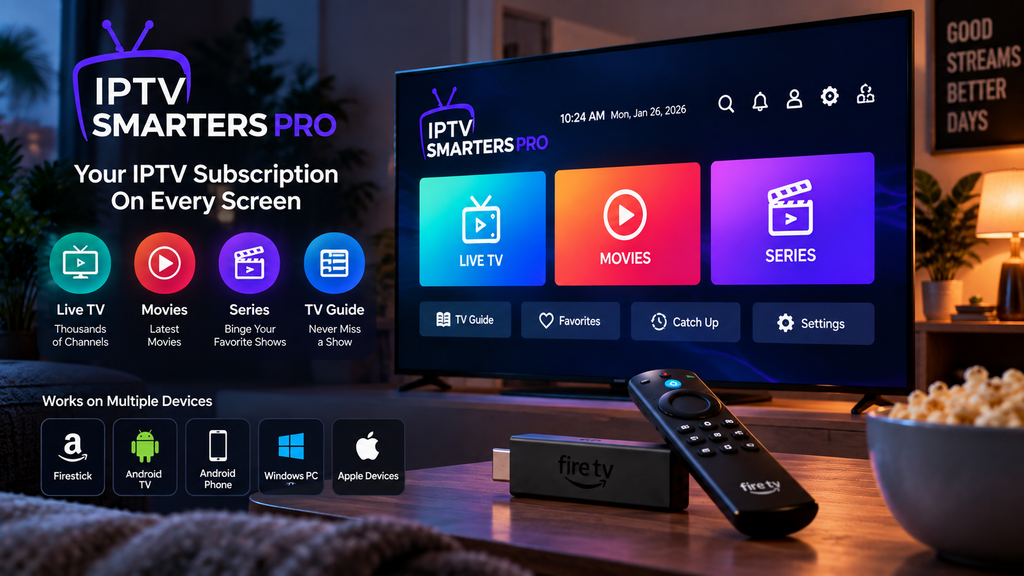
IPTV Smarters Pro is a free IPTV player app. It does not come with any channels of its own. Instead, it works like a remote control and TV guide for the IPTV service you already pay for. You enter the login details from your provider, and IPTV Smarters Pro loads your live TV channels, movies, TV series, and program guide into one organized screen.
Think of it this way: your IPTV subscription is the content, and IPTV Smarters Pro is the TV set you watch it on. Without a subscription, the app shows an empty screen. Without an app, your subscription is just a username and password with nowhere to go. If you are new to these terms, our explainer on IPTV vs OTT breaks down how IPTV differs from apps like Netflix.
This split is why IPTV Smarters Pro became so popular. One app works with thousands of different providers, so you can switch services without learning a new interface. It is also available on more devices than almost any other IPTV player, including the Firestick, Fire TV Cube, Android TV boxes, Android phones, Windows PCs, and Apple devices through the Smarters Player Lite app. You can check the official features on the IPTV Smarters website.
Is IPTV Smarters Pro Free?
Yes. The IPTV Smarters Pro app is free to download and free to use. There is no in-app purchase needed to watch your channels. The only thing you pay for is your IPTV subscription, which is a separate service from a provider like IPTVService.Shop.
Be careful with websites that claim to sell an “official IPTV Smarters Pro subscription.” The developers of IPTV Smarters Pro do not sell channels. Any site that uses the Smarters name and logo to sell a channel package is not the app developer. A real IPTV provider will tell you clearly that they are a service and that IPTV Smarters Pro is simply one of the players you can use.
Is IPTV Smarters Pro Legal and Safe?
IPTV Smarters Pro is a media player, just like VLC or MX Player. Media players themselves are legal to download and use. What matters is the content you load into them, so always choose a provider you trust and follow the laws where you live.
It also helps to know what Amazon is doing on its devices. Since late 2025, Amazon has been blocking specific apps identified as providing access to pirated content on Fire TV devices, working with an anti-piracy coalition. The blocks target individual piracy apps, not sideloading as a whole and not neutral players that you connect to your own subscription.
In terms of safety, the official APK from the IPTV Smarters website is clean. The risk comes from unofficial copies uploaded to random file-sharing sites, which may be outdated or modified. If you ever download an APK from somewhere else, you can scan the file with VirusTotal before installing it.
Key Features of IPTV Smarters Pro on Firestick
Before we get to the installation, it helps to know what IPTV Smarters Pro can actually do. Many users only use the basic live TV section and miss the features that make the app worth installing.
Xtream Codes API and M3U Support
IPTV Smarters Pro accepts both of the common IPTV login types. Xtream Codes API uses a username, password, and server URL. M3U uses one long playlist link. In IPTV Smarters Pro, Xtream Codes is faster to type on a Firestick remote and loads the TV guide automatically, so it is the method we recommend.
Built-In Electronic Program Guide (EPG)
The EPG in IPTV Smarters Pro shows what is playing now and what is coming up next on each channel, just like a cable TV guide. When you log in with Xtream Codes API, the EPG usually loads by itself. With an M3U link, you may need to add an EPG URL manually, which we cover later in this guide.
Movies and TV Series Library
IPTV Smarters Pro separates your content into Live TV, Movies, and Series. The movie and series sections show posters, descriptions, ratings, and episode lists, so browsing feels like a regular streaming app rather than a long channel list. To understand how on-demand libraries work, read our beginner’s guide to what VOD is.
Multi-Screen Viewing
Game day with more than one match? The multi-screen feature lets you watch up to four channels at the same time on one TV. It is one of the most loved features of IPTV Smarters Pro among sports fans in the USA, especially during college football Saturdays and NFL Sundays. Keep in mind that each stream uses bandwidth, and some IPTV plans count each screen as a separate connection. Nielsen noted that ESPN viewing jumped 82% in January 2026 on the strength of the college football playoffs, which shows how much Americans still want live sports on the big screen.
Catch-Up and Recording
If your provider supports catch-up TV, IPTV Smarters Pro shows a catch-up icon next to supported channels so you can watch programs that already aired. IPTV Smarters Pro can also record live TV, although on a Firestick you will usually need a USB drive through an OTG adapter because internal storage is very limited.
Parental Controls
IPTV Smarters Pro lets you lock specific categories behind a PIN. This is useful for families who want to keep adult or mature categories away from children, especially if your plan includes adult IPTV channels. You set the PIN once in the app settings.
Multiple Users and Playlists
IPTV Smarters Pro lets you add more than one user profile or playlist. Many people keep a backup service in the app, or add separate profiles for different family members. You can switch between them from the “List Users” screen.
External Player Support
If a certain channel stutters in the built-in IPTV Smarters Pro player, you can send it to an external player such as MX Player or VLC media player. This is handy for troubleshooting, and some users prefer an external player for movies.
What You Need Before You Start
Before we get into how to install IPTV Smarters Pro on Firestick, make sure you have these four things ready. Checking them now keeps the setup smooth.
A Compatible Firestick or Fire TV Device
IPTV Smarters Pro works on Fire TV devices that run Amazon’s Android-based Fire OS. That includes the Fire TV Stick (3rd generation and newer), Fire TV Stick Lite, Fire TV Stick HD, Fire TV Stick 4K, Fire TV Stick 4K Max, Fire TV Cube, and most Fire TV smart TVs from brands like Insignia, Toshiba, and Amazon Omni.
There is one important exception. The Fire TV Stick 4K Select runs Vega OS, a newer Linux-based system that only runs apps from the Amazon Appstore, with no sideloading option. If you own that model, this method will not work, and a Fire TV Stick 4K Max or an Android TV box is a better choice. You can check your model in Settings > My Fire TV > About.
A Stable Internet Connection
The FCC’s Broadband Speed Guide lists 5 to 8 Mbps as the minimum for HD video and 25 Mbps for 4K video, for one stream at a time. Live IPTV is less forgiving than on-demand video, so we recommend at least 15 Mbps for smooth HD and 25 Mbps or more for 4K. If several people stream at once, use the FCC’s Household Broadband Guide to estimate what your home needs.
If your Firestick is far from your router, a 5 GHz Wi-Fi connection or an Ethernet adapter makes a big difference. Most buffering complaints about IPTV Smarters Pro are actually Wi-Fi problems.
An IPTV Subscription
As we explained above, IPTV Smarters Pro is only a player. You need an active IPTV subscription with Xtream Codes or M3U login details. If you do not have one yet, IPTVService.Shop offers plans from $9.99 per month with more than 28,000 live channels and 58,000+ movies and shows. You can compare every option on our IPTV subscription plans page, or browse other IPTV provider guides on our blog.
About 10 Minutes
The whole installation takes about 10 minutes the first time. Once you learn how to install IPTV Smarters Pro on Firestick, you can repeat it on a new device in under five minutes.
How to Install IPTV Smarters Pro on Firestick (Step-by-Step)
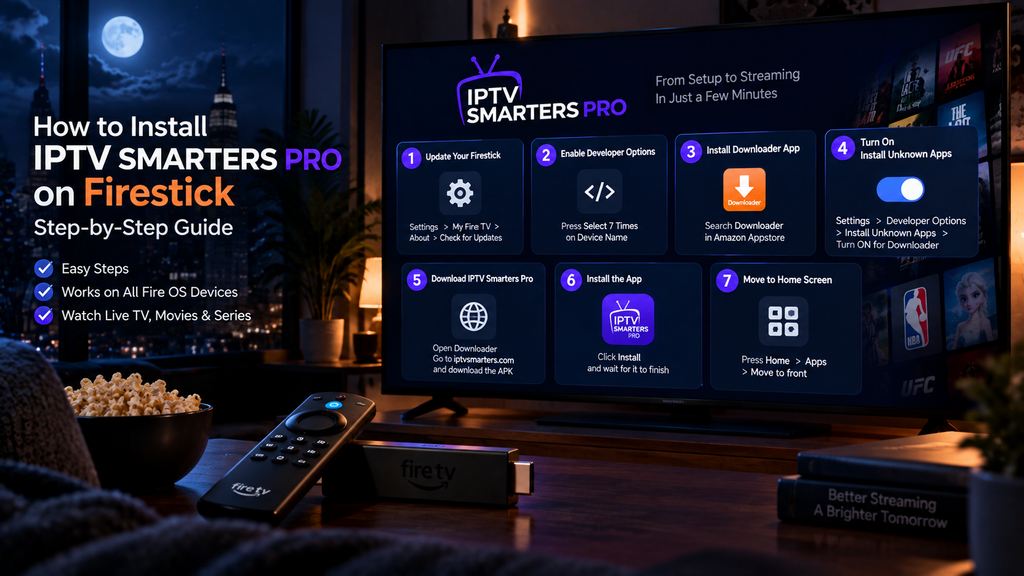
Now let’s walk through how to install IPTV Smarters Pro on Firestick. We split the process into small steps so you can follow along with your remote in hand. The same method works on the Fire TV Cube and Fire OS smart TVs.
Step 1: Update Your Firestick
Start with a quick system update. Newer Fire OS versions moved some menus around, and an outdated device can cause install errors.
- From the Firestick home screen, open Settings (the gear icon on the far right).
- Select My Fire TV.
- Select About.
- Choose Check for Updates and install any update that appears.
Your Firestick may restart. That is normal.
Step 2: Enable Developer Options
On newer Firesticks, Developer Options are hidden by default. As How-To Geek explains, Amazon now hides this menu until you unlock it from the About screen. You need it to install apps from outside the Amazon Appstore.
- Go to Settings > My Fire TV > About.
- Highlight the first item, which shows your device name (for example, Fire TV Stick or Fire TV Stick 4K Max).
- Press the center select button on your remote seven times in a row.
- You will see a message saying “No need, you are already a developer” or “You are now a developer.”
- Press the back button once. You will now see Developer Options in the My Fire TV menu.
On some newer Fire TV smart TVs, the menu is called Device & Software instead of My Fire TV. The steps are the same.
Step 3: Install the Downloader App
Downloader is a free app made by Elias Saba of AFTVnews. According to the official Downloader page, it now has more than 100 million users and lets you open a web address or a numeric short code directly on your TV. It is the key tool in how to install IPTV Smarters Pro on Firestick.
- Go back to the home screen and select the Find (magnifying glass) icon, then Search.
- Type Downloader.
- Select the orange Downloader app by AFTVnews.
- Click Get or Download, and wait for it to install.
Watch out for copycats. In March 2026, Downloader was briefly pulled from the Appstore after an update, and during that gap an impostor app appeared asking for a $6.99 weekly subscription. The real Downloader is back, and it has always been free. If an app called “Downloader” asks you to pay, it is not the right one.
Do not open Downloader yet. First, you need to give it permission to install apps.
Step 4: Turn On Install Unknown Apps
This is the step most people miss. If you have ever wondered how to install IPTV Smarters Pro on Firestick and got stuck, this setting is usually the reason.
- Go to Settings > My Fire TV > Developer Options.
- Select Install Unknown Apps.
- Find Downloader in the list and switch it to ON.
On some older Fire OS versions, you will see a single option called Apps from Unknown Sources instead. Turn that ON and confirm the warning.
This setting only allows Downloader to install apps. It does not change anything else on your device, and you can turn it off again later if you want.
Step 5: Download the IPTV Smarters Pro APK with Downloader
Now comes the main part. Here is how to download IPTV Smarters Pro on Firestick using the official source.
- Open the Downloader app.
- If you see pop-ups asking for storage access, click Allow. Close the quick-start tips.
- Click the address bar at the top so the on-screen keyboard appears. (Newer versions of Downloader combine web addresses and short codes in one bar.)
- Type the official IPTV Smarters website address: iptvsmarters.com and click Go.
- The website will load inside Downloader’s built-in browser. Use your remote to scroll to the Downloads section.
- Find the download option for Android / Fire TV (the APK file) and click it.
- The IPTV Smarters Pro APK will start downloading. Wait for it to finish.
Tip: The official website occasionally changes its layout. If you cannot find the link, our support team can send you the current direct link or a short Downloader code. See the section on downloader codes below.
Step 6: Install IPTV Smarters Pro
When the download finishes, an installation screen appears automatically.
- Click Install at the bottom right of the screen.
- Wait about 20 to 40 seconds while the app installs.
- When you see App installed, click Done (do not click Open yet).
- Downloader will ask if you want to delete the installation file. Click Delete, then Delete again to confirm.
Deleting the APK file frees up space on your Firestick. You no longer need it because IPTV Smarters Pro is now installed. That’s it. You now know how to install IPTV Smarters Pro on Firestick, and the hardest part is done.
Step 7: Move IPTV Smarters Pro to Your Home Screen
Sideloaded apps do not appear on the home screen automatically, so let’s make IPTV Smarters Pro easy to find.
- Press and hold the Home button on your remote.
- Select Apps.
- Scroll down to find IPTV Smarters Pro.
- Highlight it and press the Options button (three horizontal lines).
- Select Move to front or Move, and place it in your top row.
Now IPTV Smarters Pro sits right next to Netflix and Prime Video, ready to open with one click. For setup guides on other apps and devices, visit our IPTV setup tutorials.
How to Download IPTV Smarters Pro on Firestick Using a Downloader Code
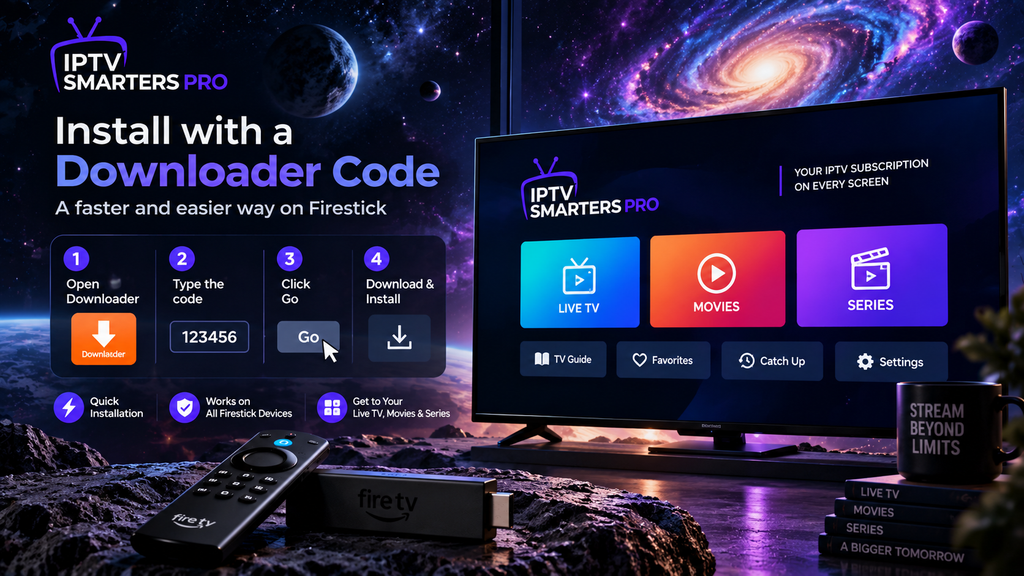
Many people search for an “IPTV Smarters downloader code” because typing a full web address with a remote is slow. A downloader code is simply a short number that points to a longer link. These codes are generated by the AFTVnews URL shortener, and anyone can create one, which is why you see so many different codes online.
Here is how it works:
- Open Downloader.
- Click the address bar (or use the number pad option in newer versions).
- Type the short code instead of a website address.
- Click Go, and Downloader either opens a page or starts the IPTV Smarters Pro download.
There is no single official IPTV Smarters Pro downloader code published by the app developers. The codes you see online are created by websites and YouTubers, and they can stop working or point to an old version without warning. That is why we always recommend the official website method from Step 5.
If you are an IPTVService.Shop customer, contact our 24/7 support and we will send you a working link for the latest version of IPTV Smarters Pro on Firestick.
How to Set Up IPTV Smarters Pro on Firestick
Learning how to install IPTV Smarters Pro on Firestick is only half the job. Now you need to connect it to your IPTV service. This section shows how to set up IPTV Smarters Pro on Firestick the right way the first time.
Step 1: Open the App and Choose TV Layout
- Open IPTV Smarters Pro from your home screen.
- The first IPTV Smarters Pro screen asks you to choose a layout. Select TV and click Save. (The Mobile layout is for phones and will look strange on your TV.)
- Read the notice explaining that IPTV Smarters Pro does not provide any content, then click Accept.
- If the app asks for storage or other permissions, click Allow.
Step 2: Log In with Xtream Codes API (Recommended)
Xtream Codes API is the easiest and most reliable way to log in to IPTV Smarters Pro. It also loads your TV guide automatically.
- On the login screen, select Login with Xtream Codes API.
- Fill in the four fields:
- Any Name: Type anything you like, for example “My IPTV” or “Living Room.”
- Username: Enter the username from your provider’s welcome email.
- Password: Enter your password exactly as sent, including capital letters.
- URL: Enter the server URL, including http:// and the port number if one is given (for example, http://example-server.com:8080).
- Click Add User.
- Wait for the message User added successfully. The app will then download your channels, movies, series, and EPG.
The first load can take one to three minutes because IPTV Smarters Pro is downloading thousands of channel names and guide listings. Do not press any buttons during this time.
When you order from IPTVService.Shop, your login details arrive by email right after payment, ready to paste into IPTV Smarters Pro. Existing customers can extend their access anytime on the subscription renewal page without changing their login.
Step 3: Log In with an M3U URL (Alternative)
If your provider only gives you an M3U link, use this method instead.
- On the login screen, select Load Your Playlist or File/URL.
- Enter any Playlist Name.
- Select M3U URL as the playlist type.
- Type your full M3U link into the File/URL field.
- Click Add User.
M3U links are long, so typing them with a Firestick remote is slow. A useful trick is to install the Amazon Fire TV app on your phone and use its keyboard to type on the Firestick. Also look at your M3U link carefully: it usually contains your username and password inside it, after “username=” and “password=”. If you mistype one character, the login will fail.
Step 4: Add the TV Guide (EPG) If It Is Missing
If you used Xtream Codes API, your EPG should already be working. If you used M3U, or if the guide is empty, follow these steps:
- From the IPTV Smarters Pro home screen, select Install EPG (on some versions this is under Settings > EPG).
- Enter the EPG URL your provider gave you.
- Click Add EPG and wait for it to load.
- Open Live TV and press left on a channel to see the guide.
If you still see “No program found,” go to Settings, choose Refresh EPG, and give it a few minutes.
How to Use IPTV Smarters Pro on Firestick
Once you are logged in, IPTV Smarters Pro shows a home screen with large tiles. Here is a quick tour so you know how to use IPTV Smarters Pro on Firestick from day one.
Live TV
Select Live TV in IPTV Smarters Pro to see your channel categories on the left, such as USA Sports, USA News, Entertainment, and Kids. Many cord-cutters look here first for local channels without cable. Pick a category, then a channel. The first click shows a small preview window; click again to go full screen. Press the center button while watching to bring up the channel list, and press up or down to change channels.
Movies and Series
The Movies and Series sections of IPTV Smarters Pro work like a streaming app. Browse by category, open a title to see its description and rating, and click Play. For series, select the season and episode. IPTV Smarters Pro remembers where you stopped, so you can continue watching later.
Catch-Up TV
Choose Catch Up from the IPTV Smarters Pro home screen to see channels that support it. Pick a channel, then pick a date and program. This feature depends on your provider, so not every channel will have it.
Search and Favorites
Use the IPTV Smarters Pro search icon at the top of any section to find a channel or movie by name. To save a channel, long-press the select button and choose Add to Favorites. Your favorites appear in their own category at the top of the list, which saves a lot of scrolling when you have thousands of channels.
Multi-Screen
Select Multi-Screen from the IPTV Smarters Pro home screen, pick a layout (two, three, or four screens), and choose a channel for each window. Use the remote to switch audio between windows. Remember that four HD streams need a fast internet connection.
Best Settings for IPTV Smarters Pro on Firestick
A few small changes in the settings menu make IPTV Smarters Pro on Firestick run noticeably smoother. Open Settings from the top right of the home screen and check these options.
- Player Selection: Keep the built-in Smarters Player for live TV in IPTV Smarters Pro. It handles channel switching best on Firestick.
- Player Settings: Set the decoder to Hardware Decoder. This uses the Firestick’s video chip instead of its processor and reduces stutters, especially on 4K channels.
- Buffer Size: If your version shows a buffer option, choose a medium or large buffer. It adds a second or two before a channel starts but reduces freezing.
- Time Format: Choose 12-hour format so the TV guide matches how most people in the USA read time.
- EPG Timeshift: If the guide shows the wrong program, adjust the timeshift in one-hour steps until it matches what is actually playing. This usually fixes time-zone differences between Eastern, Central, Mountain, and Pacific time.
- Automation: Turn on automatic EPG and channel list updates so you always see the newest channels.
- AutoStart on Bootup: Turn this off unless you want IPTV Smarters Pro to open every time you power on the Firestick.
- Parental Control: Set a PIN and lock any categories you do not want children to see.
After changing the settings, close IPTV Smarters Pro fully and open it again so the changes take effect.
Common Mistakes When Learning How to Install IPTV Smarters Pro on Firestick
After helping many customers across the USA, we see the same few mistakes again and again. Avoid these and your setup will work the first time.
Downloading from unofficial websites. Search results are full of pages offering a “modded” or “premium” IPTV Smarters Pro APK. These copies are often outdated and can contain unwanted code. When you follow how to install IPTV Smarters Pro on Firestick in this guide, you always use the official website.
Installing a fake Downloader app. Always check that the developer name says AFTVnews and that the app is free.
Skipping the Install Unknown Apps setting. Without it, Downloader cannot install anything. If the Install button is missing or grayed out, go back to Developer Options and switch Downloader ON.
Choosing the Mobile layout. If the app looks tiny or the remote does not move the cursor properly, you picked the Mobile layout on the first screen. Clear the app data and choose TV instead.
Typing the server URL without http://. The URL field needs the full address, including http:// and the port number. Missing one part is the most common reason for a failed login.
Using the same login on too many devices. Each plan allows a set number of connections. If you install IPTV Smarters Pro on Firestick, a phone, and a laptop, but your plan covers one device, streams will stop when more than one device plays at the same time. Families should choose one of our 2 or 3 device IPTV plans instead.
Now that you know how to install IPTV Smarters Pro on Firestick without these mistakes, let’s look at what to do if something still goes wrong.
IPTV Smarters Pro Not Working on Firestick? Here’s How to Fix It
Even a great app runs into problems. The good news is that almost every IPTV Smarters Pro issue on Firestick has a simple fix. Here are the most common problems we see from users in the USA and how to solve them.
IPTV Smarters Pro Won’t Install on Firestick
If you see “App not installed” or the IPTV Smarters Pro install button does nothing, try these fixes in order:
- Check Install Unknown Apps. Go back to Settings > My Fire TV > Developer Options > Install Unknown Apps and make sure Downloader is set to ON.
- Check your model. If you own a Fire TV Stick 4K Select, sideloading is not supported on its Vega OS.
- Free up storage. Firesticks have limited space. Go to Settings > Applications > Manage Installed Applications, and uninstall apps you do not use. Also delete old APK files from the Downloader Files tab.
- Remove an old version. If an older or unofficial copy of IPTV Smarters Pro is installed, uninstall it first, then install the new one.
- Download again. A download that was interrupted can produce a broken file. Delete it and download the APK again from the official website.
Unable to Download IPTV Smarters Pro on Firestick
If Downloader cannot open the website or the download never starts, the issue is usually the link or your network. Check that you typed the address correctly, restart your router, and try again. Some internet providers and public networks block certain downloads, so switching networks or using a VPN can help. You can also ask our support team for a fresh direct link.
IPTV Smarters Pro Stuck on “List Users” Screen
This is one of the most common IPTV Smarters Pro complaints. The app opens, shows your saved profile on the “List Users” screen, and then refuses to load. Usually it means the app cannot reach your provider’s server.
- Check that your subscription is active and has not expired.
- Delete the user profile and add it again with fresh login details.
- Make sure the server URL includes http:// and the correct port.
- Clear the app cache (see below).
- Restart the Firestick.
If none of that works, the server may be under maintenance. Contact your provider and ask if the URL has changed.
IPTV Smarters Pro Buffering on Firestick
Buffering usually comes from the internet connection, not the app. Try these fixes:
- Run a speed test in a browser with Speedtest by Ookla and compare the result with the FCC minimums above. We recommend 15 Mbps for HD and 25 Mbps for 4K.
- Move your router closer, switch to 5 GHz Wi-Fi, or use an Ethernet adapter.
- Set Hardware Decoder in Player Settings.
- Close background apps by restarting the Firestick.
- If buffering only happens at certain times, like during big games, your internet provider may be slowing down streaming traffic. A VPN can help in that case.
Invalid Login or Authorization Failed
If IPTV Smarters Pro says your login is invalid, check the details one by one. Passwords are case-sensitive, so “Abc123” and “abc123” are different. Look for extra spaces at the end of the username or password, which often happen when copying from an email. Confirm the URL and port are correct. Finally, make sure you are not already using the maximum number of connections your plan allows on other devices.
EPG Not Loading or Showing the Wrong Time
If the guide is empty, go to Settings and choose Refresh EPG or reload your user profile. If the guide shows the wrong programs, adjust EPG Timeshift in the settings. If you logged in with M3U, add an EPG URL manually as shown earlier.
App Crashing or Black Screen
A black screen with sound, or IPTV Smarters Pro closing by itself, is usually fixed by clearing the cache or switching the video player.
- Go to Settings > Applications > Manage Installed Applications.
- Select IPTV Smarters Pro.
- Click Force Stop, then Clear Cache.
- Open the app again.
If the problem continues in IPTV Smarters Pro, try changing the player to an external player like MX Player for that channel, or reinstall IPTV Smarters Pro.
How to Restart IPTV Smarters Pro on Firestick
Sometimes a simple restart solves everything. Press the Home button, go to Settings > Applications > Manage Installed Applications > IPTV Smarters Pro, and choose Force Stop. Then open the app again. For a full reset of the device, go to Settings > My Fire TV > Restart, or unplug the Firestick for 30 seconds.
How to Update IPTV Smarters Pro on Firestick
Because IPTV Smarters Pro is sideloaded, it does not update through the Amazon Appstore. Some versions show an update notice inside the app. If yours does not, simply repeat Step 5 and Step 6: download the newest APK from the official website and install it over the old version. Your login details and favorites are usually kept, but it is a good idea to write down your login details first just in case.
Do You Need an IPTV Smarters Pro Subscription?
This is one of the most searched questions about the app, and it causes a lot of confusion. The short answer: you do not need a subscription to IPTV Smarters Pro itself, but you do need a subscription to an IPTV service.
IPTV Smarters Pro is a free player. It has no channels, no movies, and no sports of its own. When people talk about an “IPTV Smarters Pro subscription,” they usually mean an IPTV service that works with IPTV Smarters Pro. That is where a provider like IPTVService.Shop comes in.
What to Look for in an IPTV Service for IPTV Smarters Pro
- Xtream Codes API support: Makes login fast and loads the EPG automatically.
- USA channel coverage: Local networks, sports, news, and entertainment channels that American viewers actually watch.
- A working TV guide: An accurate EPG makes IPTV Smarters Pro feel like real cable.
- Stable servers: Look for providers with strong server capacity and regular updates.
- Multi-device plans: If your family watches on more than one TV, you need more than one connection.
- A free trial and refund policy: You should be able to test the service before you commit. Always read the provider’s refund policy before you pay.
- Real support: When something breaks on game night, you want help fast.
IPTVService.Shop Plans and Prices
IPTVService.Shop works perfectly with IPTV Smarters Pro on Firestick. Every plan includes 28,000+ live channels, 58,000+ movies and TV shows, HD, FHD and 4K quality, a full TV guide, a full refund policy, and 24/7 support.
| Plan | 1 Device | 2 Devices | 3 Devices |
|---|---|---|---|
| 1 Month | $9.99 | $20 | $25 |
| 3 Months | $24.99 | $45 | $65 |
| 6 Months | $39.99 | $70 | $100 |
| 12 Months | $59.99 | $100 | $150 |
Not sure yet? Start with our free IPTV trial and test it on IPTV Smarters Pro before you buy. You can find full plan details on the IPTVService.Shop pricing page, and a summary of the service on our overview page.
IPTV Smarters Pro vs Other IPTV Players for Firestick
IPTV Smarters Pro is not the only IPTV player for Firestick. Here is how it compares with other popular options, so you can decide which app fits you best.
| Feature | IPTV Smarters Pro | TiviMate | OTT Navigator | GSE Smart IPTV |
|---|---|---|---|---|
| Price | Free | Free, premium for full features | Free, optional premium | Free with ads |
| Xtream Codes login | Yes | Yes | Yes | Yes |
| M3U support | Yes | Yes | Yes | Yes |
| Built-in EPG | Yes | Yes (excellent) | Yes | Yes |
| Movies and Series layout | Yes (strong) | Basic | Yes | Basic |
| Multi-screen | Up to 4 | Premium only | Limited | No |
| Recording | Yes | Premium only | Yes | Limited |
| Ease of use for beginners | Very easy | Moderate | Moderate | Moderate |
When to Choose IPTV Smarters Pro
Choose IPTV Smarters Pro if you want a free app that is easy to set up, handles movies and series well, and offers multi-screen at no cost. It is the best starting point for beginners and families.
When to Consider TiviMate or Plex
TiviMate has the most cable-like TV guide and is loved by heavy live TV users. However, many of its best features require a paid premium plan. Some people start with IPTV Smarters Pro and later add TiviMate as a second player. If you already run a home media server, you can even bring live channels into Plex, as we explain in our guide to watching IPTV on Plex. For more player comparisons, browse our IPTV Players category or read honest IPTV service reviews before you choose.
Should You Use a VPN with IPTV Smarters Pro on Firestick?
A VPN is not required to use IPTV Smarters Pro, but many users in the USA choose one for two reasons.
First, some internet providers slow down streaming traffic during busy hours. If your IPTV Smarters Pro streams run fine in the morning but buffer every evening, throttling may be the cause, and a VPN can hide the type of traffic from your provider.
Second, a VPN adds privacy on public or shared networks, such as hotels, dorms, and apartment Wi-Fi.
If you use a VPN, pick one with a native Fire TV app, choose a server close to your location for the best speed, and turn it on before you open IPTV Smarters Pro. A slow VPN server can cause buffering, so if streams get worse after turning it on, try a different server.
How to Install IPTV Smarters on Other Devices
Your IPTVService.Shop plan works on more than just a Firestick. Here is a quick overview of other devices.
Android TV and Google TV
The method is almost the same as on Firestick. Install Downloader from the Google Play Store, allow it to install unknown apps in Settings > Apps > Security & Restrictions, and download the IPTV Smarters Pro APK from the official website.
Apple TV, iPhone, and iPad
IPTV Smarters Pro is not listed under that exact name on Apple devices. Open the App Store, search for “smarters” or “iptv smarters,” and choose Smarters Player Lite. Check the developer name and reviews before downloading. Log in with the same Xtream Codes details you use on your Firestick.
Windows PC and Mac
Visit the official IPTV Smarters website, open the Downloads section, and choose the Windows or macOS version. Install it like any other program and log in with your details. There is also a web player if you prefer not to install anything.
Android Phones and Tablets
Be careful with the Google Play Store here. Several apps use the Smarters name but are not the official player. The safest option is the official APK from the IPTV Smarters website.
For step-by-step guides for every device, visit our IPTVService.Shop device setup guides.
Get Started with IPTVService.Shop on IPTV Smarters Pro
Now that you know how to install IPTV Smarters Pro on Firestick, the only thing left is content. IPTVService.Shop was built for viewers who want reliable live TV without a cable contract.
- 28,000+ live channels including USA sports, news, entertainment, and kids channels
- 58,000+ movies and shows in the on-demand library, updated regularly
- HD, FHD, and 4K quality delivered over a 10 Gbps+ server network
- Full EPG that loads automatically in IPTV Smarters Pro
- Works on all devices, including Firestick, Android, Smart TVs, MAG, and Apple devices
- Plans from $9.99 per month, with 2 and 3 device options for families
- Full refund policy and 24/7 support by live chat
Setup takes minutes. Order a plan, receive your login details by email, open IPTV Smarters Pro on your Firestick, and click Login with Xtream Codes API. You will be watching live TV before kickoff.
Final Thoughts
IPTV Smarters Pro remains one of the best free IPTV players for Firestick in 2026. It is simple enough for a first-time user, yet it offers advanced features like multi-screen, catch-up, recording, and parental controls. The only tricky part is the installation, because the app is not in the Amazon Appstore.
Now you know exactly how to install IPTV Smarters Pro on Firestick: enable Developer Options, install the real Downloader app, turn on Install Unknown Apps, download the official APK, and log in with Xtream Codes API. If anything goes wrong, the troubleshooting section above covers the most common problems, and our support team is available around the clock.
Bookmark this guide so you can come back to it when you set up a new Firestick or update the app. For more streaming guides, visit the IPTVService.Shop blog. And if you are still looking for a reliable service to use with IPTV Smarters Pro, try IPTVService.Shop free before you buy.
Frequently Asked Questions
1 What is the download code for IPTV Smarters Pro on Firestick?
There is no official downloader code from the IPTV Smarters developers. Codes shared online are made by third-party websites and can stop working or point to old versions. The safest method is to type iptvsmarters.com into the Downloader app and use the Downloads section.
2 Why is my IPTV Smarters Pro not working on Firestick?
The most common causes are an expired subscription, wrong login details, an incorrect server URL, slow internet, or a full app cache. Check your login first, then clear the cache in Settings > Applications > Manage Installed Applications and restart your Firestick.
3 Which IPTV app is best for Firestick?
IPTV Smarters Pro is the best choice for most beginners because it is free, easy to set up, and includes movies, series, multi-screen, and a TV guide. TiviMate is popular with heavy live TV viewers, but many of its best features require a paid premium plan.
4 What is the link to install IPTV Smarters Pro?
The official source is the IPTV Smarters website at iptvsmarters.com. On a Firestick, open the Downloader app, type iptvsmarters.com, go to the Downloads section, and choose the Android / Fire TV APK. Avoid unofficial “modded” versions from file-sharing sites.
5 Is IPTV Smarters Pro free?
Yes. IPTV Smarters Pro is a free IPTV player, and you do not pay for the app itself. You need a separate IPTV subscription to get live channels, movies, and series. Plans at IPTVService.Shop start at $9.99 per month.
6 Can I install IPTV Smarters Pro on the Fire TV Stick 4K Select?
No. The Fire TV Stick 4K Select runs Vega OS, which only allows apps from the Amazon Appstore. IPTV Smarters Pro must be sideloaded, so use a Fire TV Stick 4K Max, Fire TV Cube, or an Android TV box instead.
7 How do I fix IPTV Smarters Pro buffering on Firestick?
Use at least 15 Mbps for HD and 25 Mbps for 4K, connect to 5 GHz Wi-Fi or use an Ethernet adapter, and turn on Hardware Decoder in the player settings. If buffering only happens at busy times, your internet provider may be throttling streams, and a VPN can help.