
Last updated: November 2, 2026
You have a camera, a PC or a media player with an HDMI port. You want its picture on many screens across a building or on a phone without running HDMI cables everywhere. This guide shows how to convert HDMI to IPTV, what the encoder actually does and how many channels your network can really carry.
To convert HDMI to IPTV, plug the HDMI source into an IPTV encoder, connect the encoder to your network, then set the codec, bitrate and output protocol in its web page. The encoder compresses the video and sends it as an IP stream that TVs, set-top boxes or VLC can play.
If you are new to the idea of TV over a network, our guide on what IPTV is and how it works covers the basics first.
Key Takeaways
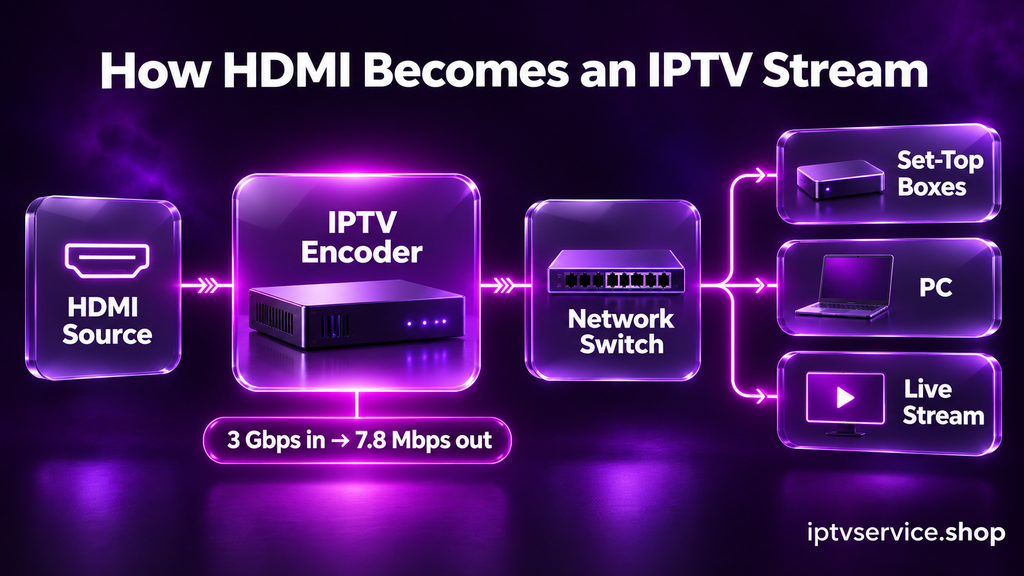
- An HDMI to IPTV encoder shrinks a Full HD signal from about 3 Gbps to about 8 Mbps. That is roughly 380 times smaller.
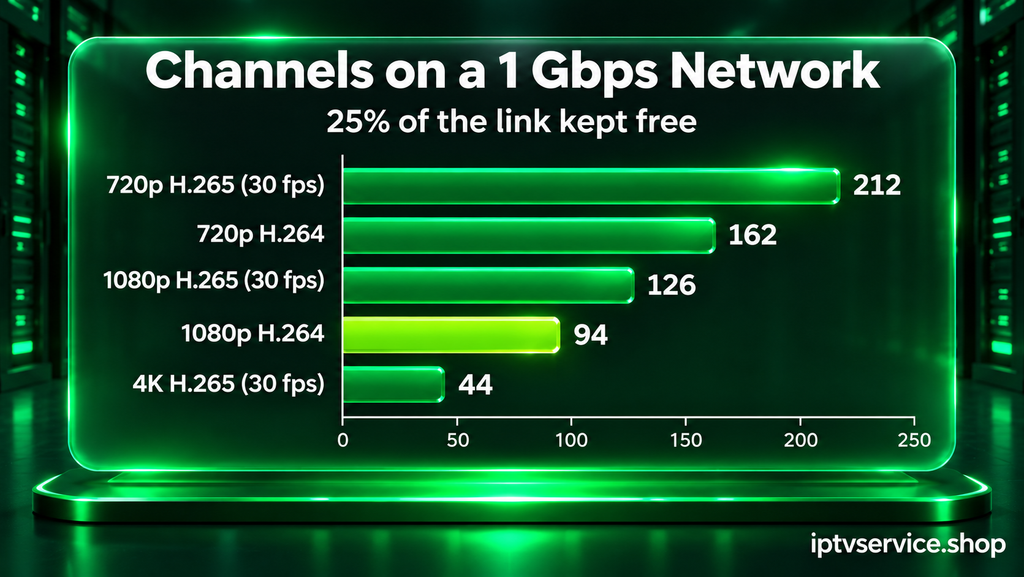
- A 1 Gbps network can carry about 94 Full HD H.264 channels (or 126 in H.265 at 30 fps) with a 25% safety margin.
- Multicast sends one copy per channel no matter how many screens watch. Unicast sends one copy per screen.
- Most pay-TV boxes and streaming sticks send HDCP-protected HDMI. A normal encoder shows a blank picture with them.
What “Converting HDMI to IPTV” Really Means
Converting HDMI to IPTV means turning a cable signal meant for one screen into a network stream that many screens can open. HDMI is a direct link between two devices. IPTV is video sent as IP packets over a normal Ethernet network.
The box in the middle is called an HDMI IPTV encoder (some shops call it an HDMI to IP converter or an IPTV streamer). It has an HDMI input on one side and an Ethernet port on the other.
Common uses:
- A lobby or menu screen shown on every TV in a building
- A lecture hall or meeting room PC shared to overflow rooms
- A security or event camera sent to monitors and to a live stream
- In-house channels on hotel room TVs
How Does an IPTV Encoder Work?
An IPTV encoder works in four stages: it captures the HDMI picture, compresses it, packs it into network packets and sends those packets to an IP address. Think of it like moving house. You cannot ship the house, so you pack everything into boxes, label them and send them by truck.
- Capture. The encoder reads the raw HDMI video and audio.
- Compress. A hardware chip encodes the video with H.264 (also called AVC) or H.265 (also called HEVC).
- Package. The compressed video goes into a container. Rack encoders such as the Thor units output MPEG transport streams (SPTS or MPTS) over UDP or RTP. Phone and browser streams use HLS segments.
- Send. The stream goes to one viewer (unicast), to many viewers at once (multicast) or to a server such as YouTube.
Why compression matters
Raw Full HD video is far too big for a network. Here is the arithmetic for 1080p at 60 frames per second with 24 bits of color per pixel:
1920 × 1080 pixels × 60 frames × 24 bits = 2,985,984,000 bits per second. That is about 3 Gbps (picture only, before HDMI adds its own timing data).
Apple recommends 7,800 kbps as the top H.264 bitrate for 1080p video in its HLS Authoring Specification. That makes the encoded stream about 383 times smaller than the raw picture. Apple lists its H.265 values for 30 fps video. At 5,800 kbps a 1080p30 picture (about 1.5 Gbps raw) becomes about 257 times smaller.
What You Need Before You Start
You need five things: an HDMI source, an encoder, a network switch, a device to view the stream and a computer for setup.
- HDMI source. A camera, PC, media player or signage player. It must not send HDCP-protected video (see the next section).
- IPTV encoder. Single-input boxes range from about $180 for budget models to about $1,000 for pro units. Multi-input rack units cost several thousand dollars (see the spec table below).
- Network switch. A gigabit switch. For multicast to many screens it needs IGMP snooping. A PoE switch can power encoders that support Power over Ethernet.
- Viewer. VLC on a PC, an IPTV set-top box, a smart TV app or an online platform.
- Setup computer. To open the encoder’s web page.
Check for HDCP First (the Most Common Reason It Fails)
If your HDMI source is HDCP-protected, a standard encoder will show a gray or black picture instead of video. HDCP is copy protection built into many HDMI devices.
BrightSign, which makes digital signage players, explains it plainly in its HDCP documentation: “Any HDCP-protected signal must remain HDCP-protected through the entire HDMI chain.” Its players show an empty gray area for protected input and cannot encode it for streaming.
What this means in practice:
- Cameras, PCs and signage players usually work.
- Pay-TV boxes and streaming sticks often send protected video. A normal encoder will not stream them.
- A few commercial encoders support HDCP Pro. One example is a MediaStar encoder from Uniguest, whose datasheet says it keeps HDCP protection across the network to the same brand’s media players. These are closed systems built for licensed commercial use.
Never try to strip copy protection. Use legal, licensed services and check the rules where you live.
How to Convert HDMI to IPTV in 7 Steps
These steps show how to convert HDMI to IPTV using the J-Tech Digital JTECH-ENCH4AP as a worked example because its official setup guide publishes every default. Other encoders follow the same pattern with different addresses and menu names.
- Connect the source. Run an HDMI cable from your source to the encoder’s HDMI input. If you want separate analog audio, the J-Tech model also has a 3.5 mm audio input.
- Connect the network. Plug the encoder’s LAN port into your switch. With a PoE switch the encoder powers up from the cable. Otherwise use its power adapter.
- Put your computer on the same subnet. The J-Tech encoder ships with the address 192.168.1.168. Set your PC to 192.168.1.11 with subnet mask 255.255.255.0 for the first login.
- Open the web page and log in. Type the encoder’s address into a browser. The J-Tech defaults are admin and admin. Change the password right away and give the encoder an address that fits your network.
- Set the video. Go to Encoder → Main Stream. Pick the resolution, the codec (H.264 for widest playback or H.265 for smaller streams) and the bitrate from the planner table below. Set the keyframe interval to 2 seconds. Apple and YouTube both recommend 2 seconds.
- Pick the output protocol and address. Use the protocol table below. For TVs across a building choose UDP or RTP multicast with an address in the 239.x.x.x range. For YouTube choose RTMPS if your encoder’s firmware supports it. Otherwise use RTMP. Then paste the server URL and stream key.
- Test before rolling out. In VLC open Media → Open Network Stream and enter the stream address. VideoLAN’s own example for joining a multicast stream is rtp://@239.255.12.42. If your encoder shows a port number for the stream, add it after a colon at the end of the address. You should now see your HDMI picture in VLC.
Once one PC plays the stream cleanly, add set-top boxes or TVs one group at a time.
Which Output Protocol Should You Pick?
Pick the protocol by where the viewers are: multicast for screens inside one building, RTMPS for YouTube, SRT for sending over the internet and HLS for phones and browsers.
| Your goal | Protocol | Why | What plays it |
|---|---|---|---|
| Same channel on many TVs in one building | UDP or RTP multicast | One copy per channel on the network | IPTV set-top boxes, VLC |
| A few viewers or a recorder on the LAN | RTSP (unicast) | Simple pull by URL | VLC, NVRs |
| Live on YouTube | RTMPS | YouTube’s live encoder settings list RTMP and RTMPS | YouTube |
| Send to another site over the internet | SRT | Built to recover lost packets on unreliable networks | SRT decoders, servers |
| Phones and web browsers | HLS | Uses ordinary HTTP delivery but adds delay | Phones, browsers, smart TVs |
Why HLS lags behind live
HLS sends video in short files called segments. Apple’s spec says segments should be 6 seconds long. The HLS specification, published as RFC 8216, tells players not to start less than three target durations from the end of a live playlist. Three times 6 seconds puts a standard HLS viewer at least 18 seconds behind live. Apple’s spec also describes Low-Latency HLS, which recommends one-second parts to cut this delay. It only helps when the encoder, the server and every player support it. Our post on adaptive bitrate streaming explains how HLS switches quality on the fly.
SRT lets you set its delay buffer yourself. The SRT Alliance describes SRT as an open-source protocol built to recover lost packets with AES encryption for the stream.
How Many Channels Can Your Network Carry?
A 1 Gbps network can carry about 94 Full HD channels in H.264 or 126 in H.265 at 30 fps when you keep a 25% safety margin. A 100 Mbps link carries only 9 Full HD H.264 channels. This is the number most guides skip.
| Stream type | Video bitrate | Plus audio | 100 Mbps link | 1 Gbps link |
|---|---|---|---|---|
| 720p H.264 | 4.5 Mbps | 4.628 Mbps | 16 channels | 162 channels |
| 720p H.265 (30 fps) | 3.4 Mbps | 3.528 Mbps | 21 channels | 212 channels |
| 1080p H.264 | 7.8 Mbps | 7.928 Mbps | 9 channels | 94 channels |
| 1080p H.265 (30 fps) | 5.8 Mbps | 5.928 Mbps | 12 channels | 126 channels |
| 4K H.265 (30 fps) | 16.8 Mbps | 16.928 Mbps | 4 channels | 44 channels |
How we calculated this
We took Apple’s highest recommended bitrate for each resolution and codec and added 128 kbps for stereo audio (YouTube’s recommendation). We kept 25% of each link free for network overhead and other traffic, so 75 Mbps of a 100 Mbps link and 750 Mbps of a 1 Gbps link are usable. Then we divided and rounded down. Example: 750 ÷ 7.928 = 94.6, so 94 channels. Apple’s H.265 numbers are for 30 fps video, so plan for more at 60 fps. Your encoder may run lower or higher bitrates. For 1080p60 H.264 live streams YouTube gives a minimum of 6 Mbps and a recommended 17 Mbps.
Multicast vs unicast: the 40-room example
With unicast, every screen gets its own copy of the stream. With multicast, the network sends one copy per channel and the switch hands it to every screen that asks for it.
Say 40 rooms watch the same 1080p H.264 channel:
- Unicast: 40 × 7.928 Mbps = 317 Mbps
- Multicast: 7.9 Mbps, the same as one viewer
There is a catch. A switch without IGMP snooping floods multicast to every port. RFC 4541 describes the result without snooping: “Packets will be flooded into network segments where no node has any interest in receiving the packet.” Every PC and Wi-Fi access point on that switch then has to carry video it never asked for. Turn on IGMP snooping before you start multicast. Our guide to how a CDN delivers IPTV shows the internet-scale version of this same problem.
For addresses, RFC 2365 sets aside 239.0.0.0 to 239.255.255.255 as the administratively scoped range, meant for use inside your own network.
Which IPTV Encoder Is Best for Hotels? A Checklist
No single encoder is best for every hotel. The right one depends on how many channels you send, what the room TVs can decode and whether your sources are HDCP-protected. Use this checklist before you compare prices.
- Channel count. Count your in-house channels. Multi-input rack encoders save space when you have many. Single-input boxes are easier to add one by one.
- Multicast support. Look for UDP or RTP multicast and IGMP v2 or v3 support.
- Room device compatibility. Check which codecs and protocols your set-top boxes or TV apps play. H.265 saves bandwidth only if every room device can decode it.
- Bandwidth. 30 Full HD H.264 channels need about 238 Mbps (30 × 7.928). That fits on a gigabit core with room to spare.
- Channel guide and extras. Hotel systems often add a channel guide and on-demand videos through separate middleware. See our explainers on what an EPG is and what VOD means.
- Licensing. A home TV subscription does not cover guest rooms. DIRECTV warns businesses that “Using a residential TV account in a commercial setting can violate copyright laws and may result in significant fines.” It has separate hospitality terms for hotels, motels and resorts.
VeCaster vs Thor: What the Spec Sheets Show
VeCaster and Thor are two names that come up often in HDMI encoder searches. On paper they solve different jobs. The VeCaster HD units are single-input boxes with many output protocols. The Thor H-HDPerformux line packs several HDMI inputs into one rack unit with UDP and RTP output.
| Model | HDMI inputs | Max input | Codecs | Output protocols | Listed price |
|---|---|---|---|---|---|
| VeCaster HD HEVC (Pro Video Instruments) | 1 | 1080p60 | H.265, H.264, MJPEG | SRT, RTMP(S), HLS, HTTP, RTSP, RTP, UDP uni/multicast | $895 sale ($995 regular) |
| VeCaster HD H.264 (Pro Video Instruments) | 1 | 1080p60 | H.264, MJPEG | SRT, RTMP(S), HLS, HTTP, RTSP, RTP, UDP uni/multicast | $495 sale ($549 regular) |
| VeCaster PRO HDMI (Pro Video Instruments) | 1 | 1080p60 | H.265, H.264, MJPEG | NDI, SRT, RTMP(S), HLS, HTTP, RTSP, RTP, UDP uni/multicast | $997 sale ($1,095 regular) |
| Thor H-HDPerformux-4 Gen 2 | 4 | 1080p60 in, 1080p30 out | H.264 (H.265 on Plus model) | UDP, RTP (RTSP on Plus model) | $3,995 ($4,794 list) at Markertek |
| J-Tech Digital JTECH-ENCH4AP | 1 | 4K60 in, 1080p60 out | H.264, H.265, MJPEG | UDP, HTTP, RTSP, RTMP, SRT, HLS, FLV, ONVIF | Not shown; a sister J-Tech encoder is $179.99 |
What the numbers reveal:
- Prices span a wide range. J-Tech Digital’s website lists a 4K-input HDMI IPTV encoder at $179.99. The VeCaster HD H.264 is $495 and the HEVC model is $895. The 4-input Thor works out to $3,995 ÷ 4 = about $999 per input.
- Protocols differ a lot. The single-input boxes list SRT, RTMP and HLS. The Thor page lists UDP and RTP, which fit a building-wide multicast system but not a direct YouTube push.
- Bitrate ranges differ. Thor lists 1 to 13 Mbps. Pro Video Instruments lists about 250 kbps up to 20 Mbps for the VeCaster HD HEVC.
- Check the network port. The J-Tech user manual lists a 100M network port and a top encoding rate of 32 Mbps, so the port is not a bottleneck for its own stream.
- HDCP handling is not explained. The spec pages we checked do not say how these encoders treat HDCP-protected sources. Ask the maker before you buy if your source might be protected.
Can You Convert HDMI to IPTV Without an Encoder Box?
Yes. A computer with an HDMI capture card can do the encoder’s job using free software such as OBS Studio or FFmpeg. FFmpeg’s protocol documentation covers sending to udp:// addresses (including multicast) and to srt:// addresses.
This works well for testing or for one channel. For screens that run all day a dedicated encoder is simpler because it is a single-purpose box that does not depend on a PC staying awake.
Why Won’t My HDMI to IPTV Converter Work?
Most failures come from five causes. Check them in this order:
- Gray or black picture. The source is HDCP-protected. Try a camera or PC to confirm the encoder works.
- Cannot open the web page. Your computer is on a different subnet. Match it to the encoder’s default address (step 3).
- Stream plays on the PC but not on TVs. The TVs or boxes cannot decode the codec or protocol. Switch from H.265 to H.264 or from HLS to UDP.
- Whole network slows down or multicast stops after a few minutes. Turn on IGMP snooping on the switch. Snooping depends on IGMP queries, so make sure one device on the network acts as the IGMP querier. Many managed switches have a querier setting.
- Stream stutters on Wi-Fi. The bitrate is too high for the wireless link. Lower it or use a wired connection for fixed screens.
The Honest Downsides
Streaming HDMI over a network works well, but the method has real limits worth knowing before you buy.
- Protected sources do not work. Most pay-TV boxes and streaming sticks send HDCP video. You need a licensed HDCP Pro system or an unprotected source.
- Cost adds up per channel. Pro units cost about $500 to $1,000 per input, so ten channels can mean about $5,000 to $10,000 in encoders alone. Budget boxes start near $180 per input.
- Standard HLS adds delay. With 6-second segments viewers sit at least 18 seconds behind live. Low-Latency HLS reduces this when every device supports it. Otherwise use multicast, RTSP or SRT when timing matters.
- The network needs setup. Multicast needs a managed switch with IGMP snooping and an IGMP querier. A basic home switch may flood traffic.
- Hotels need the right license. Sending pay-TV channels to guest rooms needs a commercial agreement, not a home plan.
None of these are deal-breakers for a planned setup. If you only need one screen in the next room, a plain HDMI extender may be simpler.
Frequently Asked Questions
What is an HDMI to IPTV encoder?
It is a box that takes video from an HDMI port, compresses it with H.264 or H.265 and sends it over Ethernet as an IP stream. TVs, set-top boxes, VLC and online platforms can then play that stream.
HDMI extender vs IPTV encoder: which do I need?
An HDMI extender carries one HDMI signal to one distant screen over a dedicated cable. An IPTV encoder turns the signal into a network stream that many screens can join. Pick an extender for one screen and an encoder for many.
How much does an HDMI to IPTV encoder cost?
Single-input encoders range from $179.99 on J-Tech Digital’s store to $997 for the VeCaster PRO (November 2026). A 4-input Thor rack unit was listed at $3,995 (list price $4,794) at a retailer. Prices change often.
Why does my HDMI encoder show a black or gray screen?
The source is almost always sending HDCP-protected video. Standard encoders cannot stream protected content. Test with a camera or a PC to confirm the encoder itself works.
Does an IPTV encoder need an internet connection?
No. On a local network the encoder streams straight to screens with multicast or RTSP. You only need internet when you send the stream to YouTube or to another site with SRT.
How do I connect the IPTV stream to a TV?
Use an IPTV set-top box, a smart TV app that opens network streams or a PC with VLC connected to the TV. Each device needs the stream address, such as an rtp://@239.x.x.x multicast address.
Can I convert HDMI to IPTV in 4K?
Yes, with a 4K-capable encoder. Plan for about 16.8 Mbps per channel in H.265 at 30 fps using Apple’s top 4K rung. A 1 Gbps network fits about 44 such channels with a 25% margin.
Summary
To convert HDMI to IPTV you need three things: an encoder, a gigabit switch and the right settings. Check for HDCP first, set H.264 or H.265 with a 2-second keyframe and pick multicast for building-wide TV or RTMPS for YouTube. Use the planner table to size your network before you buy.
Next, read IPTV vs OTT to see how a building-wide IPTV system differs from internet streaming apps. Planning a setup now? Tell us your channel count in the comments.